Category Archives: Art

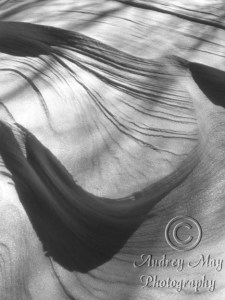
Snow Drift Abstract Art

Last week, New England was hit with a big snow storm.  Some areas were hit worse than others and a lot of people lost power, roads were closed, etc.  But fortunately, my area escaped relatively unscathed.  We only received about a foot of snow (if that) and heavy winds.


The wind around my house is a bit strange.  Instead of the usual one directional wind, we get winds that circle us.  One second you’re walking into the wind, the next it comes at you from behind and hits you like a ninja.  This kind of wind tends to make rather large snow drifts in my yard and driveway.  I decided shortly after the storm passed (and when the winds were quiet) that I would take a little walk around my house and see what the snow drifts were like.  As usual, I had my camera with me and took quite a few images of random shapes and lines left in the snow by the wind.


Huzzah!  Natural abstract art!


Snow Drift Abstract Art


Now, am I the only one that thinks this looks kind of like a face?  [o_O]  Hmm..


Until next time…


[^_^]

~A.M.

Post Production

Depending on who you ask, post production can either be a photographer/artist’s best friend or evil incarnate!

Photographers will tell you that the best thing to do is to get the image right at the time of capture so there will be little to no need for post production.  It’s a good rule to follow, especially for nature, wildlife, and portrait photography.  It’s good to be able to take photographs that have a true-to-life feel straight from the camera.

Sometimes however, even if you’re camera settings are spot on, the resulting photo might still need a little tweak in brightness, color, saturation, etc. before it’s satisfactory.

Of course this “get it right in camera” rule, like all rules, can be bent or even broken completely.  Sometimes heavy post production may actually be desired from the start of a project.  Several photographers out there just cringed at that, but let me explain.

Say, for example, you want to take your shot of that pretty sunset, that cool moonrise, or that neat portrait and turn it into something completely fantastical and artistic.  It’s still a good idea to strive for true-to-life images as a base (you never know when you might want or need that true-to-life image for something in the future) but Photoshop can be your friend when it comes to making art.

I’ll show you an example of this.  For a photographer, I’m not personally very photogenic (that and I’m my own worst critic!).  Like most photographers, I‘m more comfortable behind the camera than in front of it.  So, after much deliberation, I took one of the best shots from a series of self portraits (with a shameless plug for my favorite musician, Celldweller!).

It came out alright, but I wanted to do something more to it.  I wanted to make it less life-like and more…well…artistic.  So, I engaged in some heavy post production, adjusting levels, color, and especially contrast.  I’ve been told by many people that my eyes are my best feature, so I wanted to showcase them by making them the only part of the image in color.

Art (and beauty) is always in the eye of the beholder.  It’s completely subjective.  The same is true for post production.  Whether or not to do post production and how much of it to do is a personal preference.  However, I do agree on one thing with the anti-post production team….Post production should always be a tool of photography, not a crutch.

Until next time…

[^_^]

~A.M.

Beyond Photography

I, like most artists, have many interests (and dare I say skills) beyond my primary medium of photography.  I’m a digital artist, a painter, a book maker, a writer, and a jewelry designer.

I have a gallery here on my site showcasing some of my digital art and I’m thinking about adding a gallery in which I’d post photos of some jewelry I’ve made and have available for sale.

Thoughts?  I’d love to hear from my readers, either here on my blog or on my Facebook page.  Don’t be shy!

Until next time…

[^_^]

~A.M.

Make Your Signature Into A Custom Photoshop Shape

For those new to the world of Photoshop (all two of you out there), making custom brushes or shapes may sound like a daunting task but it really isn’t that bad.  Sure there are a few steps and it might get frustrating if you lose your place but time, focus, and practice is the key.  Once made, brushes and custom shapes can make your life a whole lot easier.

While creating some brushes to watermark my photography, I came across a tutorial online that showed me step-by-step how to take my signature from the page to a custom shape in Photoshop.  And, from this custom shape, you can make a custom brush.

Instead of me writing out all the steps, it might be easier on all of us if I just point you to the tutorial I stumbled across –>” Turn Your Signature Into A Photoshop Custom Shape.”

This tutorial is straight forward, detailed, and not too difficult to follow for those Photoshop savvy folks.

Now what to do with this custom shape once you’ve made it?  Well, that’s up to you.  You can use it like a watermark like I talked about a few posts back.  You can photograph (or scan) artwork, bring it into Photoshop, and use your custom brush to apply your signature.  Or you can do like I did a while ago and take some small address labels and make stickers with your signature on them (they‘re handy to apply my signature to prints)!

The possibilities are limited only by your imagination and creativity.  Give it a try!

Until next time….

[^_^]

~A.M.

Creating A Watermark

One of the first things any photographer or artist should do before posting an image of their work online is create a watermark bearing the copyright symbol and the artist/photographer‘s name/logo.

This is a rather simple process you can do in Photoshop in less than two minutes once you get the hang of it.  I’ll guide you, step by step through the process I use.

* First, create a brush.  This can be your logo, the copyright symbol with your business name, or the copyright symbol with your name.  This is a one-time step.  Once you name and save your brush, you’ll be able to go straight to the next step the next time you have an image to watermark.  Huzzah!

* Second, open your selected image and resize it for use on the internet.  A smaller image with a smaller resolution is good to not only keep loading time low but also discourage theft by making any enlargement of the image pixilated.

* Third, create a new layer.  A NEW layer, not a duplicate of the original layer, a NEW layer.

* Fourth, on the new layer, use your newly created brush in black.  The size of the brush is up to you, just make sure it’s big enough to be legible!

* Fifth, apply the “emboss” filter to this layer.  You can play around with how pronounced you want the shadow of your watermark to be by changing the angle, height, and amount settings.  Typically, I use an angle of 180, a height of 3 pixels, and an amount of 80%.  Experiment until you find something you’re happy with.

* Sixth, go to the “layers” palette and set the blending mode to either “soft light”, “hard light”, or “vivid light” depending on how pronounced you want your watermark to be.  I typically go with “hard light” as my watermark blending mode.

* Finally, save your image as a new file.  This step is important or you’ll end up losing your original file, but you folks are smart cookies so I’m sure you already know this!  But, when saving your image, make sure you choose a medium to low quality.  Something under 100kb is best.  Again, this is to discourage theft by making any enlargements of the image too pixilated to be of any use.

If you look through any of my galleries, you’ll see the watermark I created for myself.  It’s not a bad idea to create other brushes to use in this process for when you get bored with the first one.

Good luck, and happy watermarking!

Until next time….

[^_^]

~A.M.