Tag Archives: Photography

Published Again!

That’s right, folks.  My photography was published again!

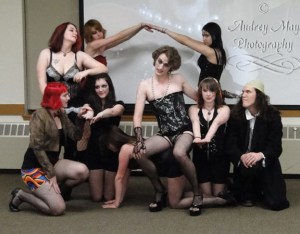
During my job photographing publicity images for the UMF theater group’s production of the “Rocky Horror Picture Show”, I agreed to let a local Maine newspaper, the Franklin Journal, use a few of my images to help advertise the production.

I was expecting the paper to allow just one image to grace a small corner of a back page but to my surprise, when I received a copy of the Friday, April 20th edition, I found that three images were utilized.  To make that even more awesome, two of those photographs made the front page!  The third wasn’t far away, gracing the third page of the paper!

Front…freaking…page!

I’m so proud of myself!  I’m also proud of the cast of the show!  They were so awesome to work with!

Until next time…

[^_^]

~A.M.

Rocky Horror Awesomeness…

Last night I had the insane privilege of shooting publicity photographs for the University of Maine at Farmington Theater Group’s rehearsal of “The Rocky Horror Picture Show.”

I adore The Rocky Horror Picture Show, so when this opportunity was brought to my attention, of course I jumped at the chance.

I would like to thank the cast and crew for making me feel welcome and making my job so easy and hilariously fun.

I would also like to thank my cousin, Christina, for suggesting me to the group for this job.  And thanks to the director, Amanda, for accepting Christina’s suggestion and being awesome through the whole process!

I had a blast working with the entire group and I can’t wait for the final performance next Sunday!

Until next time…

“I see you shiver with antici.…pation.”

\m/ [^_^] \m/

~A.M.

Every Once In A While…

You come across something so totally awesome, or so totally funny, that you just HAVE to share it with others.

This fits into both the funny and awesome categories.

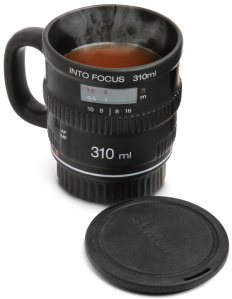
What happens when photographers get thirsty?  They reach for this…

Or maybe this…

Aw yeah!  I’m so getting one of these!  Probably the first one!

Until next time…

[^_^]

~A.M.

Color? Or Black & White?

Since the advent of color film, photographers were left with the choice of shooting in color or black and white.  Today is no different, even with the advancement of digital photography.  Many digital cameras have a Black & White or “monochrome” feature.

It’s true that some photographs have more impact in black and white than in color, but should you utilize your digital camera’s monochrome setting and shoot directly in black and white?

Many photographers will tell you….No!

Don’t panic!  Take a breath!  It’s ok!

This is actually a good suggestion.  Shooting in color leaves you with more options in post production than shooting in black and white.  You can use selective color mixed with black and white, sepia tone, or any other tone you can think of.  Not to mention, it’s easier to convert a color photograph to black and white than it is to colorize a black and white photograph!

So, folks, when it doubt, shoot in color and convert to black and white later.  But remember, if you are going to convert an image to black and white, make sure you save the black and white image as a new file.  Always keep the original color image intact!

Until next time….

[^_^]

~A.M.

Creating A Watermark

One of the first things any photographer or artist should do before posting an image of their work online is create a watermark bearing the copyright symbol and the artist/photographer‘s name/logo.

This is a rather simple process you can do in Photoshop in less than two minutes once you get the hang of it.  I’ll guide you, step by step through the process I use.

* First, create a brush.  This can be your logo, the copyright symbol with your business name, or the copyright symbol with your name.  This is a one-time step.  Once you name and save your brush, you’ll be able to go straight to the next step the next time you have an image to watermark.  Huzzah!

* Second, open your selected image and resize it for use on the internet.  A smaller image with a smaller resolution is good to not only keep loading time low but also discourage theft by making any enlargement of the image pixilated.

* Third, create a new layer.  A NEW layer, not a duplicate of the original layer, a NEW layer.

* Fourth, on the new layer, use your newly created brush in black.  The size of the brush is up to you, just make sure it’s big enough to be legible!

* Fifth, apply the “emboss” filter to this layer.  You can play around with how pronounced you want the shadow of your watermark to be by changing the angle, height, and amount settings.  Typically, I use an angle of 180, a height of 3 pixels, and an amount of 80%.  Experiment until you find something you’re happy with.

* Sixth, go to the “layers” palette and set the blending mode to either “soft light”, “hard light”, or “vivid light” depending on how pronounced you want your watermark to be.  I typically go with “hard light” as my watermark blending mode.

* Finally, save your image as a new file.  This step is important or you’ll end up losing your original file, but you folks are smart cookies so I’m sure you already know this!  But, when saving your image, make sure you choose a medium to low quality.  Something under 100kb is best.  Again, this is to discourage theft by making any enlargements of the image too pixilated to be of any use.

If you look through any of my galleries, you’ll see the watermark I created for myself.  It’s not a bad idea to create other brushes to use in this process for when you get bored with the first one.

Good luck, and happy watermarking!

Until next time….

[^_^]

~A.M.